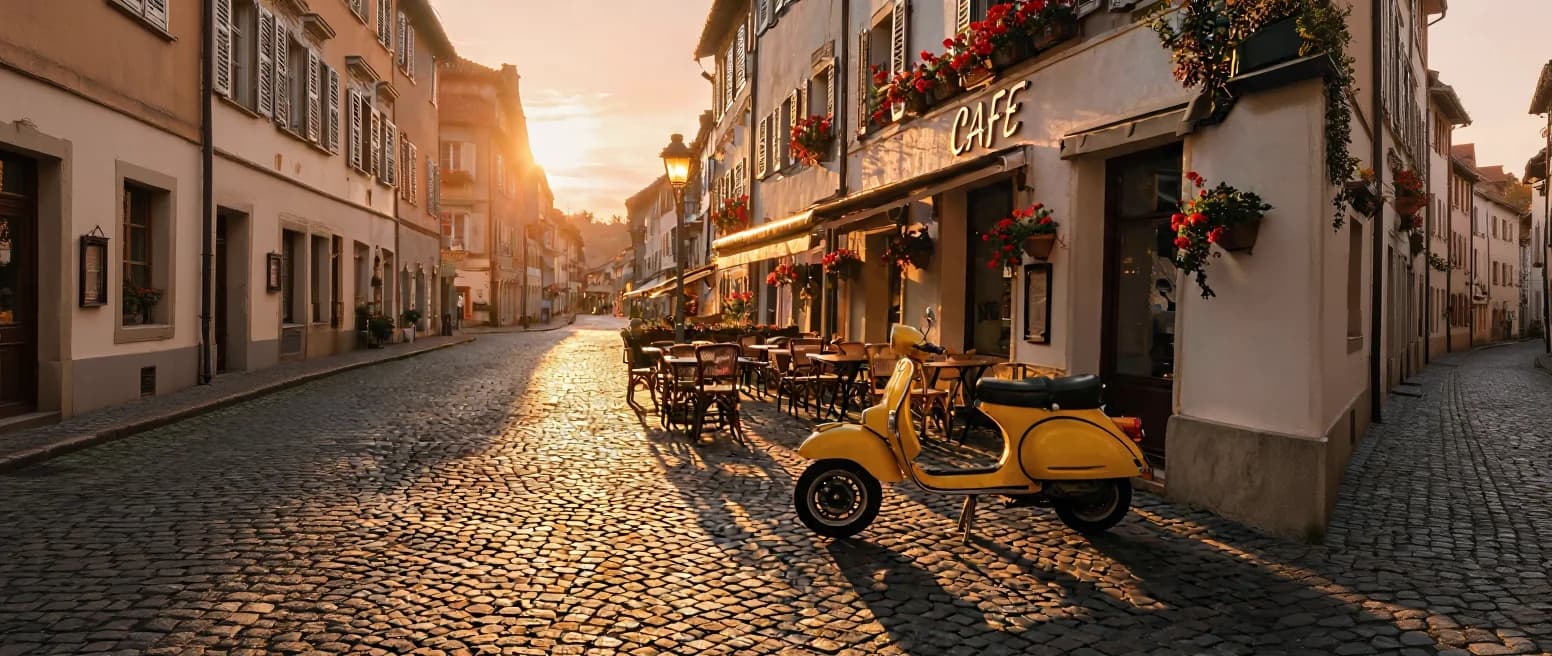
Opening ai photo editor.
0.0s
0.0s
The image editing studio
Every tool shares one canvas. Type the change as a plain instruction, or paint a mask over the exact area first. Pick an engine from the bench to render it, and every edit keeps a version you can step back to.
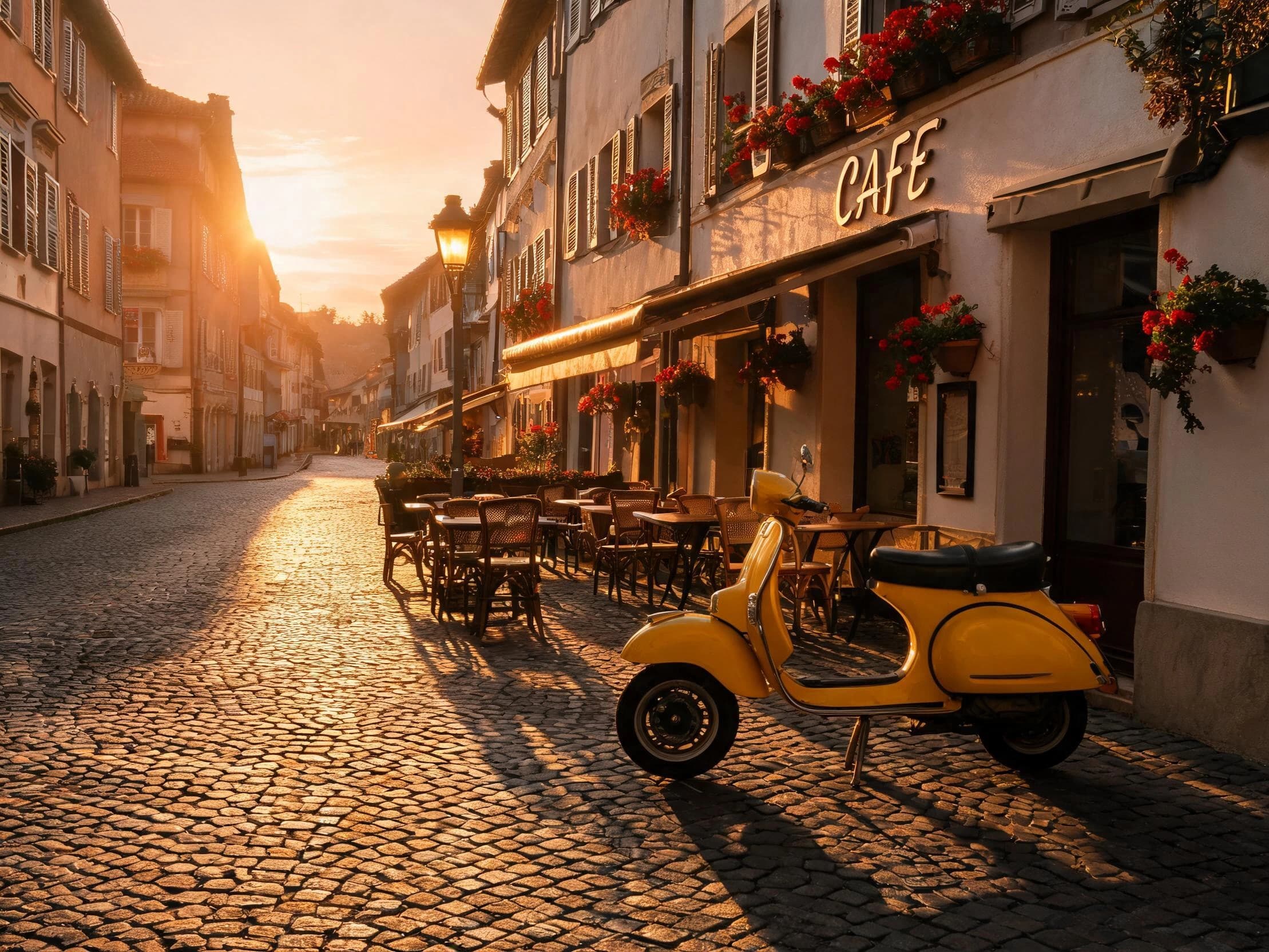
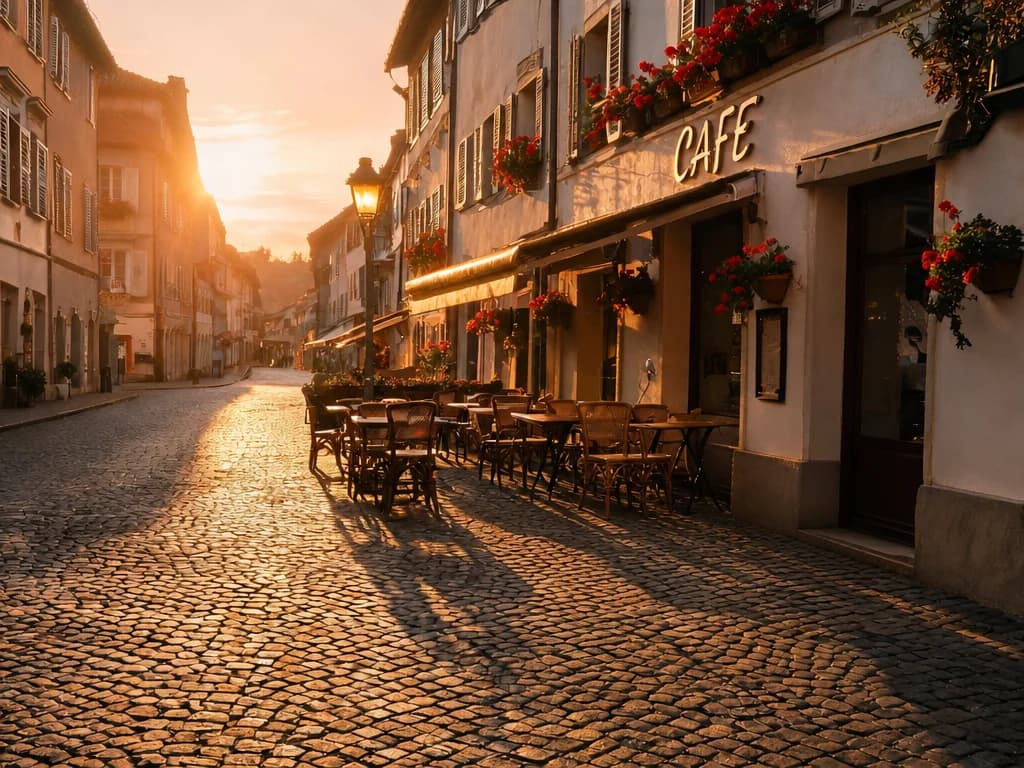 After · GPT Image 2Before
The scooter is gone and the cobbles run on where it stood. Everything left of the seam is GPT Image 2’s render, untouched.
01 · The workbench
Erase, relight, restyle, reframe, expand, upscale and cut, all reading from the same canvas. Whatever one tool renders, the next one picks up.
The old way is an eraser in one app, a relight in another, and an export between every step. Here the whole bench works on one canvas, so an erased object, a new light and an upscale are back-to-back passes, not round trips.
The Eraser, Draw and Expand run deep enough to keep their own pages. Their rows in the ledger link out, and each of those pages walks the tool at full length.
02 · The jobs board
Real renders from engines on the bench, each pinned with the engine that sent it back. Every card files out to the page that shows it at full length.
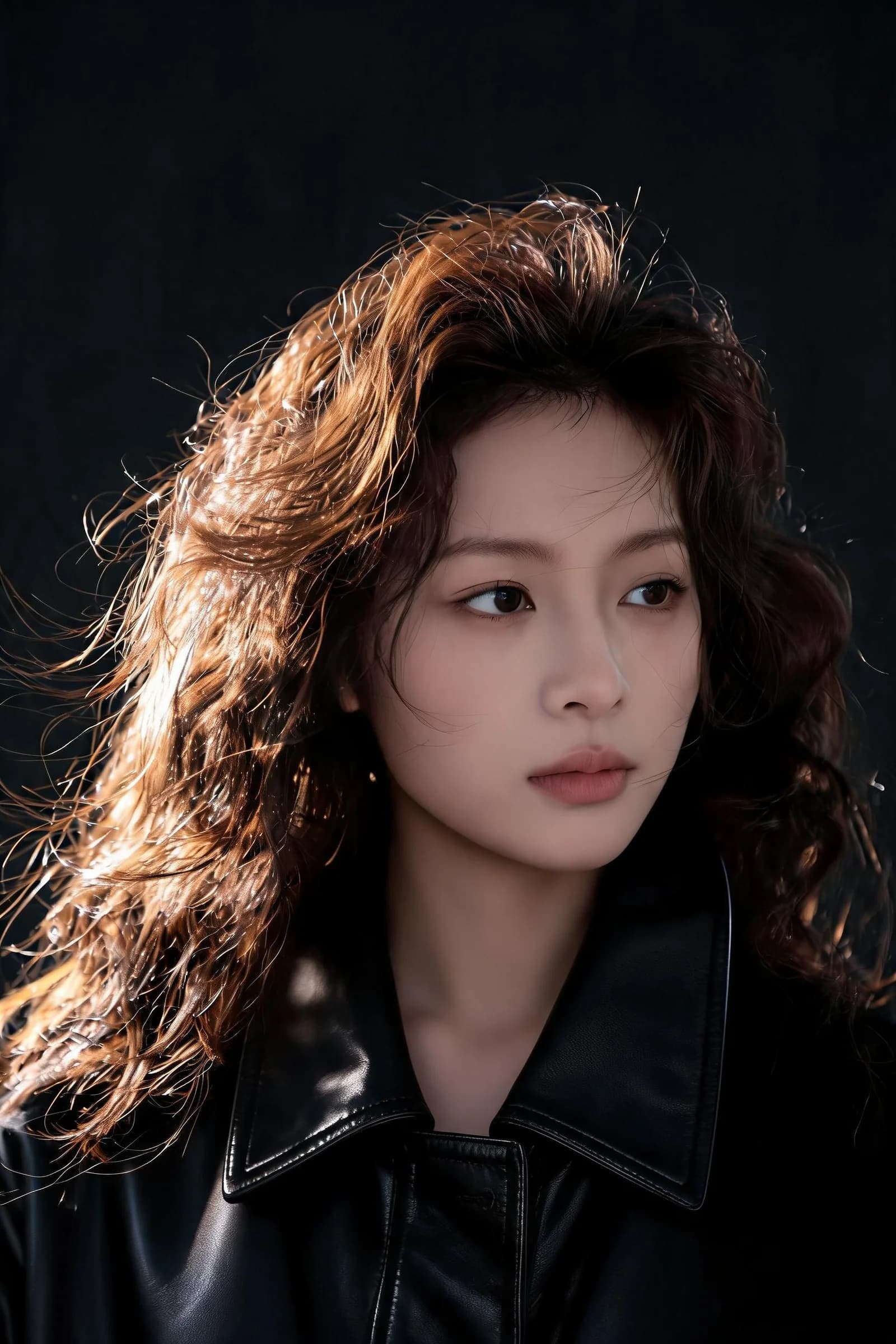
The next slot on the board is open. Pin your photo free
03 · The mask
A paint brush marks the area, an unpaint brush takes back the strays, and a fullscreen editor opens when the detail work starts.
An instruction says what should change. A mask says where. Paint over the sleeve, the sign, the sky, and the mask tells the engine which region to change, while the rest of the photo is kept as close to the original as the engine allows. When a mask needs surgical edges, the fullscreen editor gives the brush the whole screen to work with.
Brush sizes, drawn at actual size
The mask, itemized
04 · The engines
You choose the engine per edit and can switch on the next one. The canvas and its history stay put either way.
Engine register
Every engine reads the same ticket: your photo, your instruction, your mask if you drew one. Which engine renders it is a dropdown, not a decision tree. If a render argues with you, hand the same ticket to another engine and compare.
The scooter at the top of this page went to GPT Image 2. AI Edit also takes reference images when the change has to match something you already have, and each engine sets how many it reads. The rest of the register waits behind the same selector.
05 · The history
Every edit keeps a version history, so an experiment costs nothing but the look.
Every edit files the state it replaced. Compare versions, step back to the one that was right, and continue from there. The bold move stops being a gamble when the safe state is one click behind it.
Every tool shares one canvas: AI Edit for instruction based edits, Draw for inpainting, an Eraser, Style Transfer with a library of presets, Expand to grow the canvas past the frame, free browser side Adjustments, Change Light with lighting presets, Camera Angle, Color Palette, Upscale for a sharper file, and Cut BG for background removal.
Type what should change as a plain instruction, or paint a mask over the exact area first. An engine renders the edit and the result lands back on your canvas, where the next tool can pick it up.
Signup comes with free tokens, no card required. The Adjustments tool is entirely free because it runs in your browser: brightness, contrast, saturation, hue and blur, baked into the file on download. When tokens run out, plans are one time payments, not subscriptions.
Yes, that is the mask system. A paint brush marks the area, an unpaint brush takes back the strays, sizes run from 5 to 80px, and a fullscreen precision editor opens when the detail work starts. The mask tells the engine which region to change, and the rest of the photo is kept as close to the original as the engine allows.
Nothing is lost. Every edit keeps a version history you can step back through, so you can compare states, return to an earlier one and continue from there.
The edit tools run on GPT Image 2.5 Sunburst, GPT Image 2.5 Flare, Seedream 5.0 Pro, Qwen Image 3.0 Pro, Qwen Image 3.0, GPT Image 2, Seedream 5.0 Lite, Qwen Image 2 Pro, Qwen Image 2, and EA Edit. Expand offers the ones that can be told an output shape. EA Edit is built on Kling Image. You choose the engine per edit and can switch on the next one, while Camera Angle, Upscale and Cut BG each run on a dedicated engine of their own.
07 · Begin
Free tokens at signup · no card required · everything you make is yours